

Documentation
Teams and roles
An organization is the account your company pays for. Teams are the units that receive alerts and own their own schedules, policies, rules and keys. Two sets of roles decide who may change what.
Organizations and teams
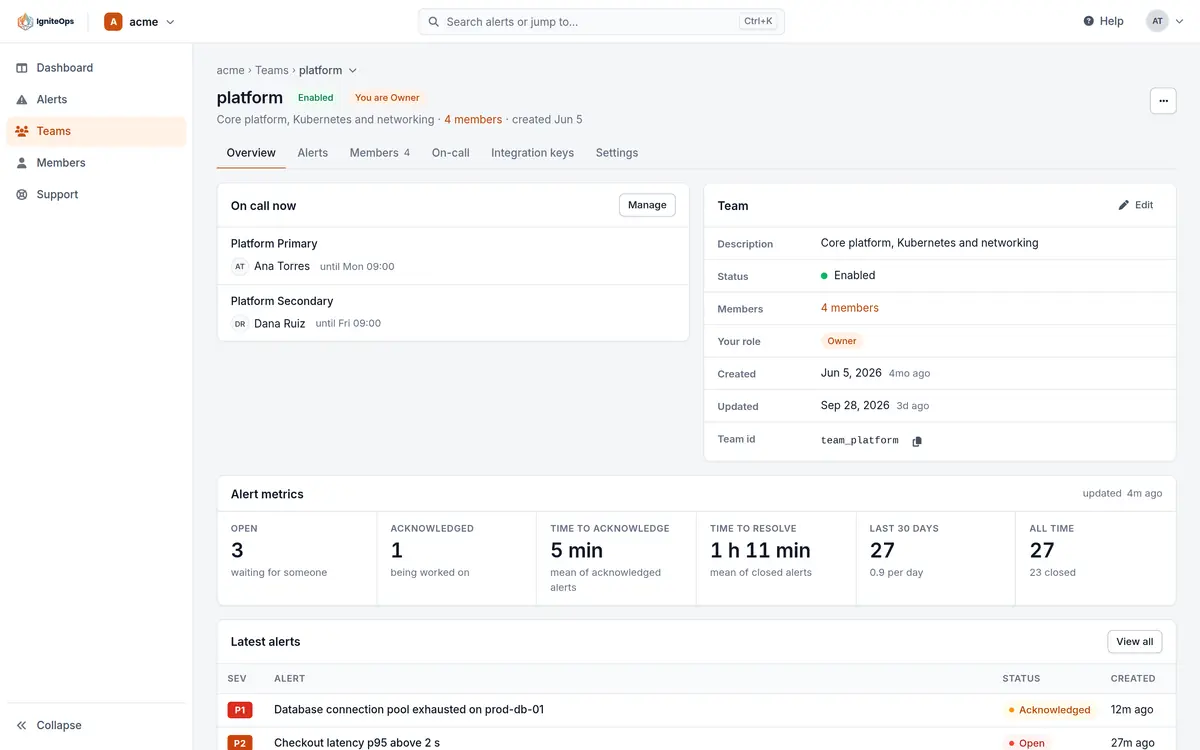
Everything lives under an organization: its members and their seats, its plan and billing, and its teams. A team is where alerts land. It has its own integration keys, routing rules, escalation policies and schedules, and its own members with team roles. Most companies start with one team per service area or platform.
- A member of the organization can belong to any number of teams, with a different role in each.
- Any member of the organization can create an alert for any team, whatever their team role, from the console or the app.
- A disabled team pages nobody: alerts sent to it are stored with routing suppressed.
- Deleting a team deletes its alerts, keys, rules, policies and schedules. The dialog lists what goes. Only the organization Owner can do it.
Organization roles
| Owner | Manager | Member | |
|---|---|---|---|
| Read the organization, its teams and its alerts | ✓ | ✓ | ✓ |
| Create alerts for any team | ✓ | ✓ | ✓ |
| Create and edit teams, their rules, policies, schedules and keys | ✓ | ✓ | – |
| Delete a team | ✓ | – | – |
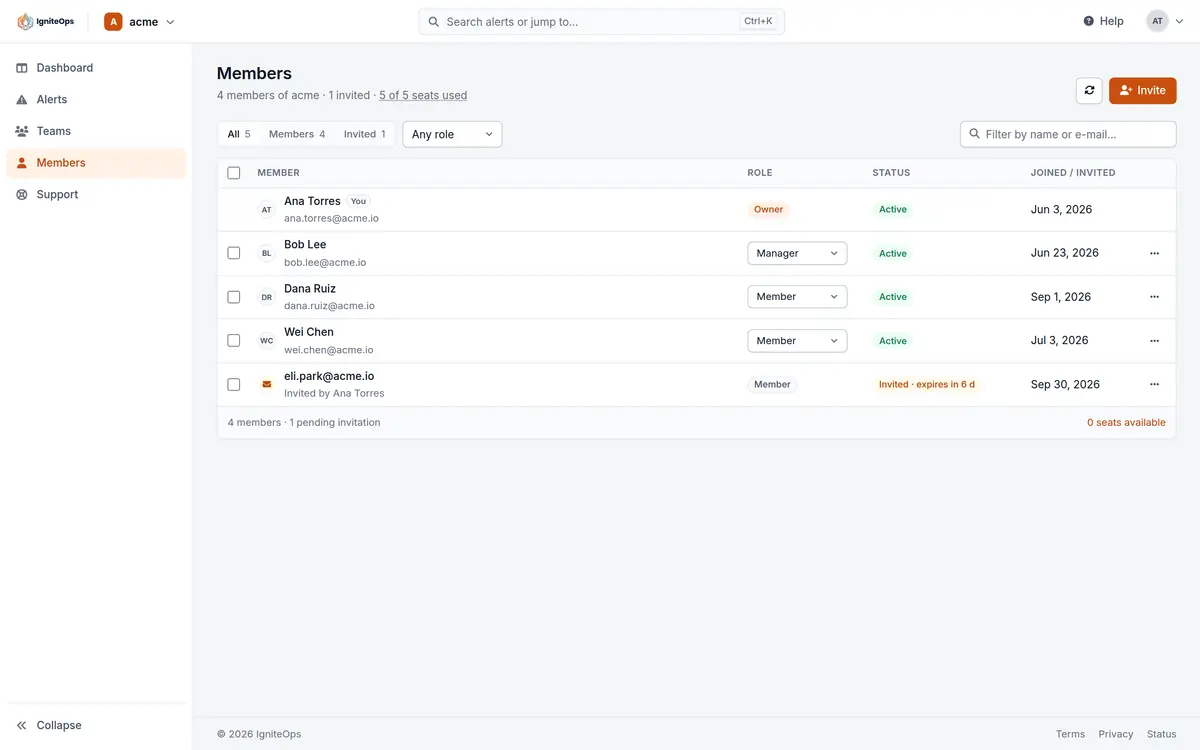
| Invite and remove members, assign seats | ✓ | Members only | – |
| See pending invitations | ✓ | ✓ | – |
| Billing: plan, card, seats, invoices, usage | ✓ | – | – |
| Rename, transfer or delete the organization | ✓ | – | – |
| Leave the organization | – | ✓ | ✓ |
There is exactly one Owner, whose seat is free. Ownership can be transferred to another member from Settings. The Owner is the only person who keeps access to the billing pages when an organization is frozen for an unpaid balance.
Team roles
Team roles apply inside one team and combine with the organization role: an organization Owner or Manager can manage every team without holding a team role in it.
| Owner | Manager | Responder | Observer | |
|---|---|---|---|---|
| Read alerts, schedules, policies, rules and keys | ✓ | ✓ | ✓ | ✓ |
| Acknowledge, close, reopen, comment on and edit alerts | ✓ | ✓ | ✓ | – |
| Be a participant of a schedule, a target of a step or a rule | ✓ | ✓ | ✓ | – |
| Add an override to a schedule | ✓ | ✓ | ✓ | – |
| Delete an override | ✓ | ✓ | – | – |
| Create, edit and delete rules, policies, schedules and keys | ✓ | ✓ | – | – |
| Add, change and remove team members | ✓ | Responders and Observers | – | – |
| Rename, describe, enable or disable the team | ✓ | – | – | – |
The console marks what a role cannot do rather than hiding it: a Responder opening the On-call tab reads "You can add overrides; a team Owner or Manager changes the rest."
Who may do what with an alert
- Acknowledge assigns the alert to the person acknowledging and stops the escalation. Owners, Managers and Responders of the team, from the console, the app, the email link, the call or the API.
- Close, reopen, change the severity or the assignee, add a note or a comment: the same three roles.
- Delete an alert: the organization Owner and Managers, and the team’s Owner and Managers.
- The email’s Acknowledge link acts as the person it was sent to. If that person has since left the organization or lost the role, the link says so instead of acknowledging.
Seats and invitations
Every member occupies a seat. The Free plan has 5 seats including the Owner’s. On Pro the Owner’s seat is free and every other seat is $3 a month, prorated. Members are invited by email, up to 10 invitations a day on Free and 100 on Pro, and an invitation expires if it is not accepted. A member whose seat is suspended or unassigned keeps their account but cannot open the organization until a seat is assigned again.
Integration keys
An integration key belongs to one team and can do one thing: create alerts for that team through the webhook. It cannot read anything or change anything else, so a key in a monitoring tool’s configuration is as small a secret as it can be. Keys have a name (2 to 50 characters), an optional description, and an expiry of 1 day to a year or none. They can be revoked, which stops them at once, or reissued, which gives the integration a new secret and retires the old one. The secret is shown once, at creation.
Checked against the product on November 8, 2026.