Point your monitoring at a webhook. When something fires, IgniteOps works out who is on call, pages them by push, email, SMS and phone call, and keeps escalating until a person acknowledges.
Free for 5 engineers, no credit card·$3 per teammate after that·No annual contract, cancel anytime
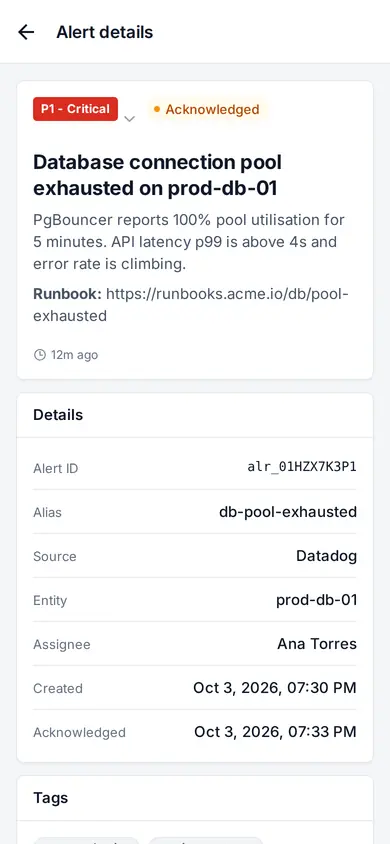
IgniteOpsnow🚨 CRITICAL: Database connection pool exhausted on prod-db-01PgBouncer reports 100% pool utilisation for 5 minutes. API latency p99 is above 4 s and the error rate is climbing.
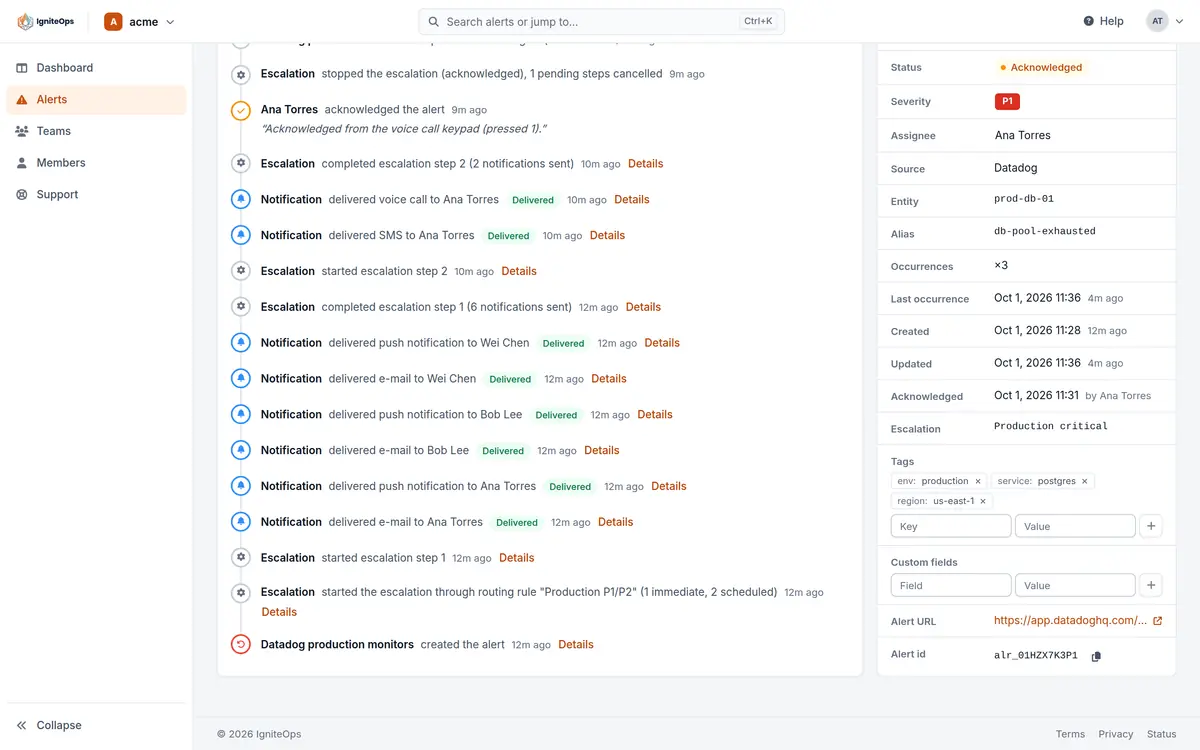
app.igniteops.io/org/acme/teams/platform/alerts
IgniteOpsnow🚨 CRITICAL: Database connection pool exhausted on prod-db-01PgBouncer reports 100% pool utilisation for 5 minutes. API latency p99 is above 4 s and the error rate is climbing.
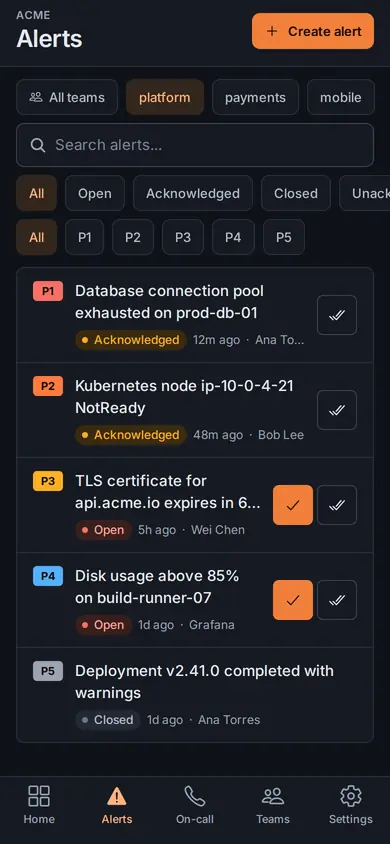
One alert, on the console and on the phone that was paged. Push and email on Free, phone calls and SMS on Pro.
Public status pageAlerts from any webhook, or from Zapier, Make and Power AutomateNative iOS and Android appsEverything in the console is also in the REST API
How it works
Follow one alert from the monitor to the phone.
There is nothing to install. Your monitoring posts JSON to a URL, and what you configured once decides who is paged, in what order and for how long. Scroll, and one alert makes the whole trip.
IgniteOps answers 201 and starts routing. A repeat with the same alias updates the alert that is already open: its counter goes up, and no second alert is created.
How duplicates are merged
A repeat whose alias matches an open or acknowledged alert is answered 200 with deduplicated: true.
The alert’s counter goes up by one and its last-occurrence time is updated.
Repeats never count against the monthly quota.
If the alert is open and its escalation has run out, a repeat starts the routing again.
There is no time window. An alias is free again once its alert is closed.
Text longer than a field’s limit is clipped, and the alert is still created.
"title":"Database connection pool exhausted on prod-db-01"
"severity":"P1"
"alias":"db-pool-exhausted"
"source":"datadog"
"tags":{ "env": "production" }
201 Createdrouting started
P1
Database connection pool exhausted on prod-db-01
×4
Datadog · platform · alias db-pool-exhausted
same alias
same alias
same alias
3 repeats later it is still one alert, and one against the quota.
03Routing
A routing rule decides who handles it.
Rules are checked in priority order and the first match wins. This one matches on the severity and a tag, and hands the alert to the Production critical policy.
What a rule can match
Conditions on severity, source, title, message, alias, entity, tags and custom fields.
Thirteen operators, from is and contains to matches regex, is set and severity is at least.
Up to 20 conditions in a rule, combined with all (AND) or any (OR), or none for every alert.
A rule targets an escalation policy, a schedule, one person, the team or another team.
When no rule matches, every member of the team is notified once, so an alert never disappears.
Free has 3 routing rules per team. Pro has no limit.
An escalation policy sets the order and the clock.
The first step pages whoever is on call and posts to the team’s Slack channel. If nobody has acknowledged after 2 minutes the next person is paged, and after 5 minutes the whole team.
Steps, targets and repeats
Each step has a delay from 0 minutes to a week, counted from the moment the alert arrived.
Eight targets: on call now, next or previous on a schedule, a person, the whole team, an email address, a webhook or a Slack channel.
Two steps with the same delay fire together.
On Pro the whole list can start again, up to 50 times or until someone acknowledges.
Pressing 2 on a call skips the wait and fires the next step at once.
Free has 2 policies per team, with 3 steps each and no repeat.
Platform Primaryweekly · handover Mon 09:00 · New York
MonTueWedThuFriSatSun
Oct 12
Ana Torres
Oct 19
Bob Lee
Oct 26
Wei Chen
Dana
Tue 03:07
override: Dana Ruiz covers the weekend
AT
Ana Torres
On call nowuntil Mon 09:00
BL
Bob Lee
Next on callpaged after 2 min
06Channels
Everyone is paged the way they chose.
Ana’s own list sets the order: email and push at once, an SMS after 30 seconds, a phone call after 60. Each one fires only while the alert is unacknowledged.
Order, delays and plans
Email is always first and carries a one-time Acknowledge link that needs no sign-in.
Push is a critical alert on iOS and Android once you grant the permission, with Acknowledge and Close on the notification.
An SMS is one 160-character segment. A call reads the alert aloud and rings up to 3 times.
Each method after email has its own delay, from 0 to 900 seconds.
A Slack step posts a message to an incoming webhook. A webhook step posts JSON to any URL, signed once the team creates a secret.
Phone calls and SMS are on Pro, billed per delivery at our rate for the destination. Slack and webhooks are Pro features, included at no charge.
Ana Torres’s notification methods firing in order: email and push at once, an SMS after 30 seconds, a phone call after 60 seconds. The policy also posted to Slack, and a webhook waits for its step.
ATAna Torres+ 1:00
from the policy’s steps
Phone callwhat it sends
“This is a call from IgniteOps. You have a critical alert: Database connection pool exhausted on prod-db-01. Press 1 to acknowledge, press 2 to escalate immediately.”
1 Acknowledge2 Escalate now
Pick a row to see what it sends.
07Acknowledge
One acknowledgement stops everything.
Ana presses 1 on the call, 73 seconds after the alert fired. The steps still waiting are cancelled, nobody else is paged, and everything that happened is on the alert’s timeline.
Every way to acknowledge
Press 1 on the phone call.
Tap Acknowledge on the push notification.
Open the link in the email. It needs no sign-in and expires after 24 hours.
Use the console, the mobile app or the API.
Before every delivery the alert’s status is read again, so nothing is sent for an alert that was just acknowledged.
Closing or deleting the alert stops the escalation too.
Ana acknowledged the alertpressed 1 on the call · 03:08:31
Escalation stopped2 pending steps cancelled
+ 2 min · Bob Lee
cancelled
+ 5 min · Whole team
cancelled
The morning after
What you get back the next morning
Every page leaves a record. The dashboard turns those records into the numbers a team improves on, next to the deployments that happened around them.
01 / 03Deployments
01Deployments
Deployments sit next to your alerts.
Your pipeline records each deployment with one request and the team’s integration key. The dashboard shows the last 7 days, with the failed and rolled-back ones marked.
On Pro, a deployment followed by unusual alerts is pointed out.
What a deployment records
One POST with the service and the version. The status, the commit and a link to the run are optional.
Send the same external_id when the job ends, and the deployment moves on to succeeded, failed or rolled back.
Each team has a Deployments tab, with filters by service, environment, status and period.
On Pro, an insight names a deployment followed within an hour by 3 alerts or more at twice the team’s usual rate, or by its first P1 of the week.
From 10 finished deployments in 30 days, the share that failed or was rolled back is watched for each team.
Recording deployments is on both plans. Free records up to 100 new deployments a day.
First P1 of the week within an hour of deploying pgbouncer 1.8.0
Check whether this change caused it.
02Weekly review
A weekly review, written from your numbers.
On Pro, IgniteOps compares the last 7 days with the 7 before and writes what it found: the findings with their evidence, what went well, and what to do next.
What the review looks at
The volume by severity, source and team, and the noisiest alerts.
The time to acknowledge and to resolve, in medians and 90th percentiles.
How the escalations went: past the first step, repeated, or run to the end without an acknowledgement.
Alerts that fired with nobody on call, and integrations that went silent.
Between reviews, insights point out patterns, anomalies and recommendations. Each can be dismissed for 30 days.
AI insights are part of Pro. On Free the dashboard shows the metrics without them.
A hospital department, a maintenance crew and a support desk have the same problem an engineering team has at 3 am: an alert that one specific person needs to notice. The mechanism is identical.
The specialist on duty
The switchboard or your own system raises the alert. The specialist on the schedule gets the push, then the call. A swap is one override. Put the room and the urgency in the alert, never the patient.
The technician on shift
A sensor platform, a building system or a ticketing tool posts the alarm. The technician on shift is paged first, the backup two minutes later, and the whole crew after that.
The manager covering support
A ticket that breaches its SLA, or a P1 from a key account, pages the manager on duty instead of landing in a shared inbox that nobody watches at night.
Alerts can come from anything that posts JSON, from a Zapier, Make or Power Automate flow, or from the Create alert button in the app. A schedule can also follow a shared Outlook or Google calendar through the API. Push and email on Free. Phone calls and SMS on Pro.
IgniteOpsnow🚨 CRITICAL: Database connection pool exhausted on prod-db-01PgBouncer reports 100% pool utilisation for 5 minutes. API latency p99 is above 4 s and the error rate is climbing.
iOS and Android
Critical alerts get through silent mode.
The apps are native. Once you grant the permission, a critical alert sounds on a phone that is on silent or in Do Not Disturb: on iOS through Apple’s critical alerts entitlement, on Android by lifting Do Not Disturb for the alert. You can acknowledge or close from the notification, see who is on call, and set the order and delay of your own notification methods.
Push needs the app installed and a data connection. For the teammate who never installed it, or the night the Wi-Fi is down, Pro adds SMS and a phone call.
Free for 5 engineers. $3 per teammate when you need the phone to ring.
Start on Free with no card and no expiry date. You move to Pro when you need phone calls and SMS, Slack or a webhook, a 6th engineer, a second team, or more than 100 alerts a month. Your own seat stays free on Pro, push and email stay unlimited, and Slack and webhooks are included at no charge. You pay for teammates, for calls and SMS, and $0.10 per alert beyond the 100 included each month.
Free
$0forever, no card
A single team with a real rotation and push notifications on their phones.
Start on Free and upgrade in Settings when you need it. Your seat stays free.
You need Pro when the phone has to ring (calls and SMS)
When alerts should also land in Slack or a webhook (included in Pro)
When a 6th engineer or a second team joins
When more than 100 alerts a month have to be routed
Email and push, unlimited on both plans
Calls and SMS are billed per delivery at our rate for the destination. A call to a US number is about $0.02 per minute (October 2026). Repeats collapsed by alias never count. No annual contract, cancel anytime.