

Documentation
Routing rules
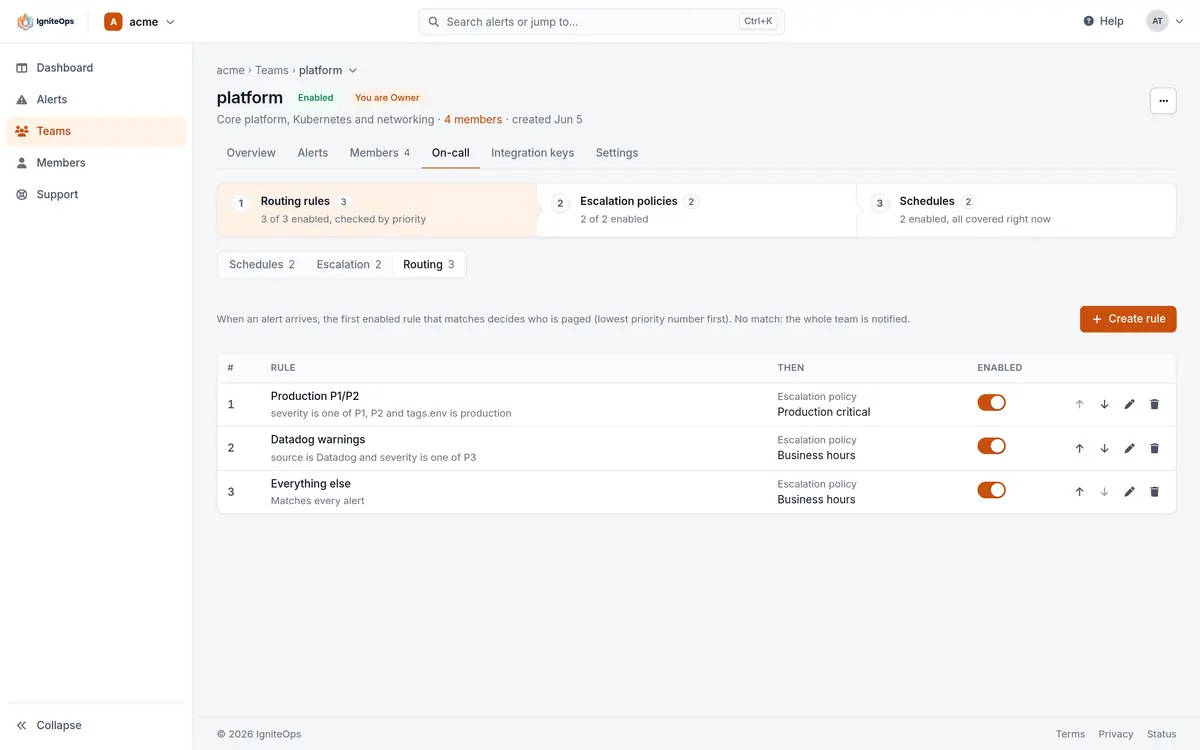
A routing rule looks at an incoming alert and decides who handles it: usually an escalation policy, sometimes a schedule, a team or one person. Rules are checked in priority order and the first match wins.
How a rule is chosen
When an alert arrives (or a repeat re-starts routing), the team’s enabled rules are evaluated from priority 1 upwards. The first rule whose conditions match and whose target can page somebody decides. A rule that points at a disabled policy, or at a schedule with nobody on call, is skipped and the next one is tried, so a stale rule never silently swallows an alert. If no rule applies, the whole team is notified (see below).
Each rule needs its own priority number between 1 and 999. The console shows the rules in that order and moves them up or down with two buttons.
Conditions
A rule has up to 20 conditions, combined with all (AND) or any (OR). There is one level: a condition cannot contain another group. Each condition names a field of the alert, an operator and a value. A rule with no conditions at all matches every alert: in the console, choose Every alert under Match; in the API, send an empty rules list.
| Field | What it holds |
|---|---|
| severity | P1 to P5. |
| source | The source sent with the alert, or the integration key’s name, or "manual". |
| title | The title. |
| message | The message (the console also calls it the description). |
| assignee | The user id the alert is assigned to, if any. |
| alias | The deduplication alias. |
| entity | The affected thing, if sent. |
| integration_name | The name of the integration key that created the alert. |
| count | How many occurrences the alert has absorbed. A number, so compare it with a number. |
| tags.<key> | One tag by its key, for example tags.env. Tag values are text. |
| custom_fields.<key> | One custom field by its key. Custom fields keep their JSON type. |
Values must have the type the field holds: text for the text fields, a number for count, a list for in and not_in. A mismatch is refused when the rule is saved, with the condition named, rather than failing quietly at 3 am. The fields status and priority are refused too: an alert being routed is always open, and there is no priority separate from severity.
Operators
| In the API | In the console | Meaning |
|---|---|---|
| equals / not_equals | is / is not | Exact comparison. |
| in / not_in | is one of / is none of | The value is a list of up to 50 items (comma-separated in the console). |
| contains / not_contains | contains / does not contain | Substring, case-sensitive. |
| starts_with / ends_with | starts with / ends with | Prefix or suffix. |
| regex | matches regex | A pattern of up to 200 characters, compiled without flags, run against the first 10,000 characters of the field, with a 100 ms limit. Patterns prone to catastrophic backtracking are refused when saved. |
| exists / not_exists | is set / is not set | Whether the field, tag or custom field is present at all. Takes no value. |
| at_least / at_most | is at least / is at most | Severity only, with one severity as the value. P1 is the most severe: at least P3 matches P1, P2 and P3; at most P4 matches P4 and P5. |
Text values are up to 500 characters, and keys for tags and custom fields up to 100.
Targets
A rule has exactly one target. An escalation policy is the usual choice, because it keeps paging until someone acknowledges. The other targets notify once.
| Target | Who is paged |
|---|---|
| escalation_policy | The policy runs: step 1 now, the later steps after their delays, repeats if configured. Recommended. |
| schedule | Whoever is on call on the schedule at that moment, once. |
| schedule_next | The next person on the schedule, once (useful for a secondary). |
| schedule_previous | The previous person on the schedule, once. |
| user | One named member of the organization, once. |
| team | Every member of this team, once. |
| other_team | Every member of another team of the organization, once. A rule can hand an alert to another team this way. |
When nothing matches
There is no hidden default rule to configure. If no enabled rule matches, or every matching rule’s target would page nobody, the alert goes to every member of the team once, on their own notification methods, and the timeline records that the default team notification applied. To keep anything from reaching the default by accident, end with a catch-all: a rule that matches Every alert, with the highest priority number and the policy of your choice as the target.
Three rules most teams start with
| Priority | Conditions | Target |
|---|---|---|
| 1 | severity is at least P2, and tags.env is production | Policy "Production critical": on-call now, then next on call after 2 minutes, then the team after 5, repeating. |
| 2 | source is datadog, and title contains "certificate" | Policy "Business hours": the on-call by email only, the team after 15 minutes. |
| 3 | Every alert (no conditions) | Policy "Business hours", as the catch-all. |
A rule can also lower the noise: route severity is at most P4 to a policy whose only step is an email to a shared address, and nobody’s phone rings for an informational alert.
Limits
| Free | Pro | |
|---|---|---|
| Rules per team | 3 | Unlimited |
| Conditions per rule | 20 | 20 |
| Stored size of the conditions | 256 KB | 256 KB |
Through the API
Rules are created and updated with the same shape the console saves. POST …/routing-rules creates one, PUT …/routing-rules/{ruleId} replaces its fields, and GET lists them with the target’s current name filled in. See the API reference for the full schema.
{
  "name": "Critical from production",
  "priority": 1,
  "enabled": true,
  "conditions": {
    "logical_operator": "and",
    "rules": [
      { "field": "severity", "operator": "in", "value": ["P1", "P2"] },
      { "field": "tags.env", "operator": "equals", "value": "production" }
    ]
  },
  "target": { "type": "escalation_policy", "target_id": "6c1f6e8a-…" }
}Checked against the product on November 13, 2026.